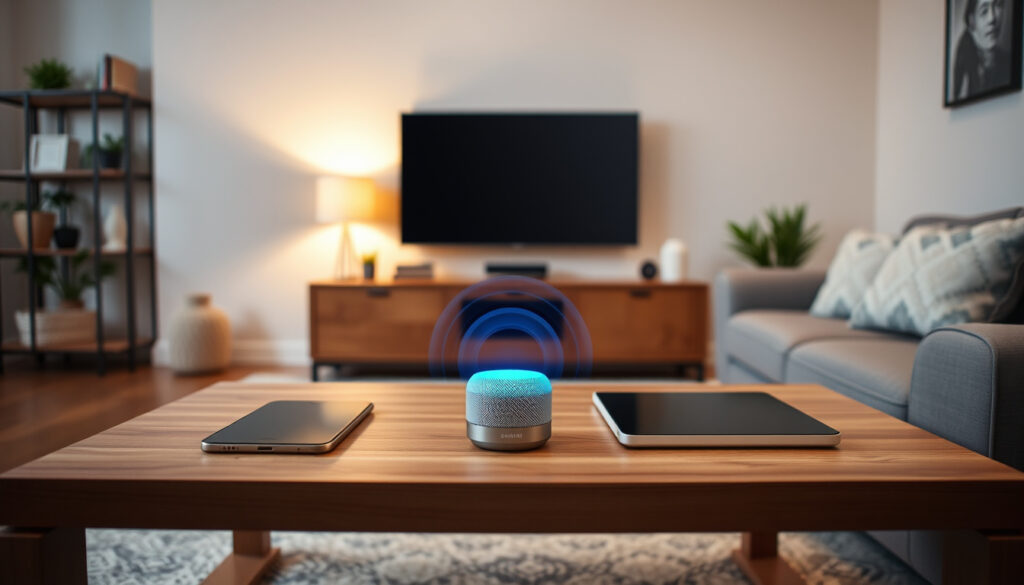
OK Google Set Up My Device – Guide for Phones TVs and Tablets
Setting up a new Android device can feel like a chore, but a simple voice command promises to simplify the process. Saying “OK Google, set up my device” is meant to kick off the setup wizard on supported phones, TVs, and tablets, often linking directly to your Google Account and old data. Yet many users aren’t sure exactly what this command does, which devices support it, or how the setup code fits in. This guide walks through every aspect of the voice‑initiated setup, based on official Google documentation and verified resources.
The command activates the Android Setup Wizard on a new or factory‑reset device, provided the device is powered on, connected to Wi‑Fi, and signed into a Google Account. For phones and tablets, the main goal is to transfer data from an old device. For TVs and media sticks, it pairs the device with your Google Home ecosystem using a unique code. Understanding these differences helps avoid confusion and ensures a smooth start.
How to Use “OK Google Set Up My Device” on Your Android Phone
When you speak “OK Google, set up my device” on a compatible Android phone, the Google Assistant launches the built‑in setup flow. The exact behaviour depends on whether the phone is new out of the box or has already been through initial configuration.
- Primary voice command – Say “OK Google, set up my device” to begin setup on a new or factory-reset Android device.
- Supported devices – Works on Android phones, tablets, Android TV, TV sticks, and Mi TV with Google Assistant.
- Requires Google account – You must sign in with a Google Account to complete setup and restore data.
- Setup code – Some devices show a code that you say or enter to pair with Google Assistant during setup.
- “OK Google set up my device” is a shortcut that launches the Android Setup Wizard on compatible devices.
- On phones and tablets, it initiates data transfer from an old device if available; on TVs, it pairs the Google Assistant.
- A setup code is often required when setting up a TV or TV stick – it must be spoken or typed on the screen.
- The command may not work on devices that are already fully set up; it is primarily for first-time or factory-reset devices.
- Using the phrase “set my device” (without “up”) is a common variation that also triggers setup.
| Device Type | Command Works? | Setup Code Required? | Data Transfer |
|---|---|---|---|
| Android Phone | Yes | No (uses Google Account) | Yes, from old phone |
| Android Tablet | Yes | No (uses Google Account) | Yes, from old phone |
| Android TV | Yes | Yes (displayed on screen) | No (apps synced via account) |
| Mi TV (with Android) | Yes | Yes (displayed on screen) | No |
| TV Stick (e.g., Chromecast) | Yes | Yes (displayed on screen) | No |
| Old phone used as trigger | Yes | No | Triggers transfer to new device |
Setting Up a TV, TV Stick, or Mi TV with “OK Google Set Up My Device”
On television devices, the voice command has a different purpose: it links the TV to your Google Account and the Google Home app. Instead of transferring personal data, the setup focuses on pairing the remote, signing into streaming services, and enabling Assistant control.
Setting up an Android TV or Google TV
After switching on the TV, ensure Bluetooth and Wi‑Fi are enabled on your phone. A QR code appears on the TV screen. Scan it with your phone’s camera (using the Google Home app) to link the devices. If scanning fails, you can press the Down arrow on the TV remote and choose “Set up on TV instead” or “Manual setup”.
Using “OK Google set up my device” with Mi TV
Mi TVs that run Android TV behave identically to standard Android TVs. A setup code is displayed on the screen; you either say the code aloud to the TV’s microphone or enter it in the Google Home app. The same process applies to TV sticks such as Chromecast with Google TV.
What about the Google Home app?
For non‑Google TV sticks or older models, the Google Home app offers an alternative path. Open the app, tap “Devices” > “Add Google Nest or partner device”, choose your home, and scan the code. If a pairing code appears on the TV, type it into the app and tap “Pair”. Google Home Help – Set up your Android TV or Chromecast provides full details.
If the QR code method fails, use the manual setup option on the TV. Both Bluetooth and Wi‑Fi must be on, and the phone should be on the same Wi‑Fi network as the TV.
How to Transfer Data from Your Old Phone Using “Set Up My Device from Old Phone”
For those upgrading to a new Android phone, the command can initiate data transfer directly from the old device. Both phones need to be nearby, powered on, and signed into the same Google Account.
Step‑by‑step: from old phone to new phone
- Turn on the new phone and connect to Wi‑Fi.
- Say “OK Google, set up my device”. The setup wizard appears.
- Sign in with your Google Account.
- Select “Copy apps and data from old phone”.
- Follow on‑screen prompts: you can use a cable, wireless transfer, or a QR code.
The exact options depend on the Android version. Official guidance from Google Support – Switch to a new Android device explains each step with screenshots. Data such as contacts, messages, photos, and app data are transferred if the old device supports it.
The old phone must have Bluetooth and location services enabled. If the new device does not detect the old phone, check that both are on the same Wi‑Fi network and restart both devices. Google Support – Find and set up Bluetooth devices offers additional troubleshooting.
What Is the “Ok Google Set Up My Device Code” and How to Use It?
Many users encounter a numeric or alphanumeric code when setting up a TV or streaming device. This code is a pairing mechanism that links the device to your Google Account. It is not a password – it is a temporary identifier that must be entered or spoken to complete the link.
On most Android TVs, the code is displayed on the screen after you say “OK Google, set up my device”. You can either read it aloud to the TV’s microphone or type it into the Google Home app on your phone. The code is typically 4–6 digits and is unique to that session.
If the code does not work, ensure both devices are on the same Wi‑Fi network and that Bluetooth is enabled. Restarting both devices often resolves the issue. Android.com – How to Set Up & Transfer Data to Your New Device confirms that QR codes and PINs are standard in Android’s transfer flow.
The code is time‑sensitive. If too much time passes, the TV may time out and require you to start the setup again. Keep your phone ready before speaking the command.
Can You Use “OK Google Set Up My Device” for a Tablet?
Yes, Android tablets follow the same pattern as Android phones. The voice command launches the setup wizard, and the tablet can either be set up as a new device or receive data from an old Android phone or tablet. The experience is identical to a phone: no setup code is needed, and the process relies on a Google Account sign‑in.
Tablets with a larger screen display the same QR code and PIN options for data transfer. If the command does not trigger the wizard, check that the tablet is factory‑reset or has never been set up. Google Support – Back up & restore data on Android covers how backups are restored after setup.
Timeline of a Typical “OK Google Set Up My Device” Session
- Power on new device and connect to Wi‑Fi – Device boots and prompts you to begin setup.
- Say “OK Google, set up my device” – Voice command launches the Setup Wizard (if device supports it).
- Sign in with Google Account – Required to proceed; restores backups and preferences.
- Select setup method (new or from old device) – If using old phone, follow on-screen instructions to transfer data.
- (TV devices only) Enter or speak the setup code – Code shown on TV must be entered in the Google Home app or spoken.
- Complete setup – Device is ready; apps and settings are restored.
What Works and What Remains Unclear About the Voice Command
| Established Information | Information That Remains Unclear |
|---|---|
| The command triggers the Android Setup Wizard on supported devices. | The exact wording of the command may vary by device manufacturer (e.g., “set up” vs “set”). |
| A Google Account is required to complete setup. | Not all Android devices support voice-activated setup out of the box; some may require manual initiation. |
| On TVs and TV sticks, a setup code is displayed during pairing. | The setup code length and format differ by device model and Android version. |
| Data transfer from an old phone is possible if both devices are nearby and signed in. | – |
Why the Command Works Differently Across Devices
“OK Google set up my device” is a convenient shortcut, but its implementation varies. On phones and tablets, the priority is data migration – moving apps, settings, and media from an old device. On TVs and sticks, the goal is to link the device to the user’s Google Account and Google Home ecosystem. The appearance of a setup code on TV‑type devices adds a step that may confuse users who expect a fully voice‑driven experience.
Google’s official support pages treat these use cases separately. There is no single article that covers the voice command across all device categories, which is why this guide consolidates the information. The lack of dedicated documentation for the exact phrase “OK Google set up my device” leaves room for interpretation, but the underlying mechanisms are well documented in existing help articles.
What Official Sources Say About the Setup Command
“Turn on your new device. Tap Start. To set up your device without an old device, follow the prompts.”
– Google Support – Switch to a new Android device
“Power on your new Android-powered device. Tap ‘Start’ to begin the setup process.”
– Android.com – How to Set Up & Transfer Data to Your New Device
“From the top of the screen, swipe down. Touch and hold Bluetooth. Tap Pair new device.”
– Google Support – Find and set up Bluetooth devices
What to Expect After Using the Command
After completing the setup, your device will have your Google Account synced, apps restored (where applicable), and default settings applied. For phones and tablets, this includes your contacts, calendar, and photos if backup was enabled. For TVs, streaming apps and Assistant voice control are ready. If you run into issues, restarting both devices and checking Bluetooth and Wi‑Fi connections usually resolves them. For a broader look at the Google ecosystem, see our Google Translate Italian to English – Step-by-Step Guide and Download Video from YouTube – Complete Guide for 2025.
Frequently Asked Questions
What happens if I say “OK Google set up my device” on an already set-up device?
Typically nothing – the command is ignored or may launch the device’s settings app. It is designed for first-time or factory-reset devices.
Can I use this command on an iPhone or other non-Android device?
No. “OK Google” is part of Google Assistant, which only runs on Android and some smart devices. iPhones use Siri or the Google Assistant app, but the “set up my device” command is Android‑specific.
Why do I see a code on my TV when saying “OK Google set up my device”?
The code is a pairing mechanism. You must either say the code aloud or enter it in the Google Home app to link the TV to your account.
Is “OK Google set my device” the same as “set up my device”?
Yes, both variations usually trigger the same setup flow. Google Assistant often understands “set” as “set up” in this context.
Do I need a Google Home device to set up a TV with this command?
Not necessarily. The TV itself has Google Assistant built‑in. However, the Google Home app on your phone is often used to enter the setup code if voice entry fails.
More related posts
 Lady Macbeth – Complete Guide to Character and 2016 Film
 Kiernan Dewsbury-Hall – Age, Stats, Transfer Fee and Personal Life
 King and Conqueror Cast – Full BBC Miniseries List
 Interest Rate Predictions UK – Forecasts for 2026 and Beyond
 U ed Range Rover for Sale 2025 – Price , Reliability & Buying Guide
 Marry Me Chicken Recipe – Creamy Skillet Dinner in 40 Minutes
 Cody Gakpo – Family, Religion, Injury and Career in 2025
 Yasmine Bleeth – Net Worth, Husband, and 2026 Update
